1. NPC Configuration
In this game, opponents are NPCs (AI). You can configure the number of players seated at the table and the types of NPC behavior patterns you will face. NPC settings define configurations for NPCs with various behavior patterns.
2. NPC Configuration Screen

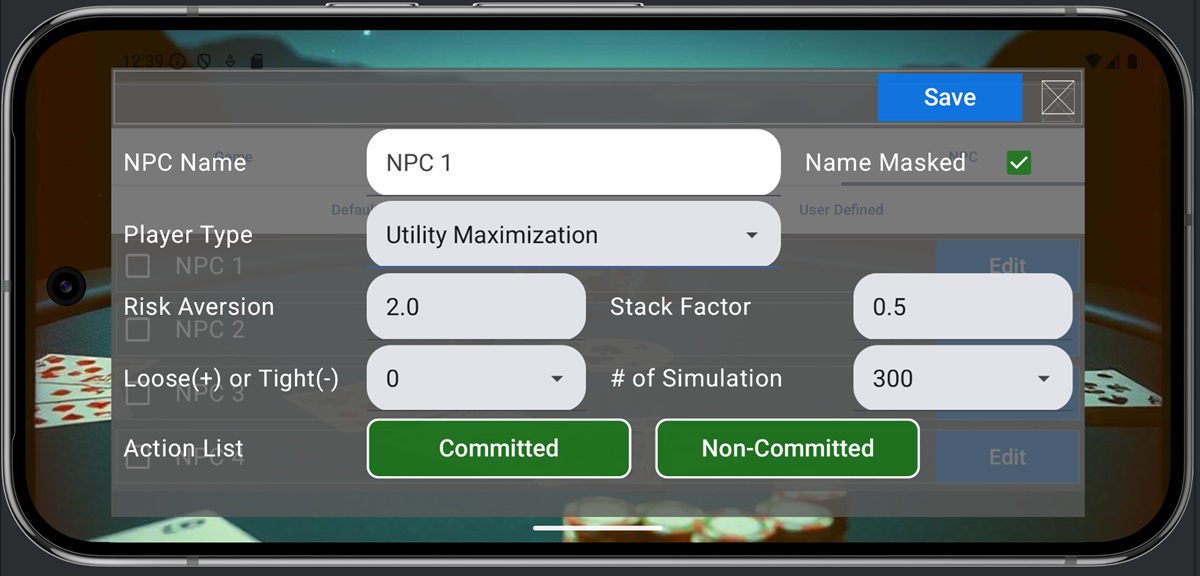
The items on the NPC Configuration screen are as follows.
- NPC Name: The name of the NPC configuration. Duplicate names cannot be used.
- Name Masked: Checking this displays the NPC name as “Unknown”. Unchecking it shows the NPC Name, allowing you to know which NPC you are facing.
- Player Type: Sets the player’s behavior pattern. The settings screen changes based on the type selected, so configure the appropriate items. The options are as follows. Each type is explained in subsequent sections.
- Caller: Always calls or checks regardless of hand.
- Random: Selects actions probabilistically without examining its hand.
- Utility Maximization: Estimates the winning probability of its hand and selects actions to maximize expected utility based on that.
- Clone AI Model: Uses the user’s Play Log for machine learning and acts by mimicking the player’s play.
3. Random

When Random is selected for Player Type, configure the probability distribution for the NPC’s chosen actions. The NPC’s actions are divided into cases where a bet has already been made (Committed) and cases where no bet has been made (Non-Committed). For Committed cases, choose from Fold, Call, or Raise; for Non-Committed cases, choose from Check or Bet. Clicking each button displays a pop-up window where you set the probability distribution for actions in each scenario.
The numbers on the right side of each row represent the ratio of selecting that action in each scenario. If the total does not equal 1, it is automatically normalized to sum to 1. Inputs are automatically saved in memory when the window is closed.
4. Utility Maximization

When selecting Utility Maximization under Player Type, configure the utility function parameters. The parameters to set are as follows:
- Risk Aversion : Risk aversion level (Passive or Aggressive)
- Stack Factor : Determines whether to choose aggressive actions when the stack decreases. Smaller values indicate more aggressive play.
- Loose (+) or Tight (-) : Sets the degree of Loose or Tight play
- # of Simulation : Number of Monte Carlo simulations
This model acts to maximize the mean-variance expected utility function:
\[ \small U(s) = \mu_s – \frac{\gamma}{2}\sigma_s^2 \]
where \(\small s\) is the stack size at the start of the game normalized to 1, and \(\small \mu_s \) and \(\small \sigma_s^2\) represent the mean and variance of the stack obtained from Monte Carlo simulations. \(\small \gamma\) is the risk aversion parameter; a larger value makes the player more passive, while a smaller value makes them more aggressive.
This utility function is known to be similar to the CRRA utility function, where players become risk-averse as their stack decreases. Therefore, using it directly would result in behavior that extremely avoids going all-in. To prevent this, the variance term \(\small \sigma_s^2\) is scaled and adjusted to prevent risk-averse behavior when the stack decreases. This adjustment factor is called the Stack Factor. This parameter can be set via the interface.
Furthermore, when selecting Fold, the stack value remains unchanged, so the expected utility is always 1. However, by adjusting the level of expected utility when folding, we can represent Loose players (players who avoid folding) and Tight players (players who prefer folding). The factor adjusting this level is Loose (+) or Tight (-). Positive values adjust towards Loose, while negative values adjust towards Tight.
Similar to Random, set the types of actions the NPC selects as Committed or Non-Committed. Among the set actions, the action with the highest expected utility is selected based on the results of the Monte Carlo simulation. The number of Monte Carlo simulation trials can be set on the screen. Around 300 to 1000 trials is sufficient, but you can increase the number if longer computation time is acceptable.
5. Clone AI Model

When Clone AI Model is selected in Player Type, you can view or delete the Play Log used by the model. Pressing the View button allows you to check the most recent 50 Play Log entries, and pressing the Delete button removes the Play Log. At release, only a simple sampling algorithm using frequency tables is implemented, and it is anticipated that sufficient replication accuracy may not be achieved. Future updates will introduce algorithms utilizing statistical models (such as logistic regression analysis) and neural networks.
6. Saving Settings
The above screen settings are saved by pressing the “Save” button. Closing the screen without pressing “Save” will discard all edits.