1. Rule Configuration
This game allows you to edit the rules applied to poker and play with the edited rules. The settings are organized across the following 8 screens.
- Basic: Set the fundamental game method and showdown rules
- Deck: Set the types of cards included in the deck
- Wild Card: Set wild cards in the deck
- Deal: Set the number of betting rounds and players
- Stage: Sets the number of cards dealt and betting method for each betting round
- Compose: Sets the rules for composing hands and community cards during poker hand evaluation
- Ranking: Sets the order of poker hand strengths
- Straight: Sets valid straight combinations and their relative strengths
2. Basic Screen

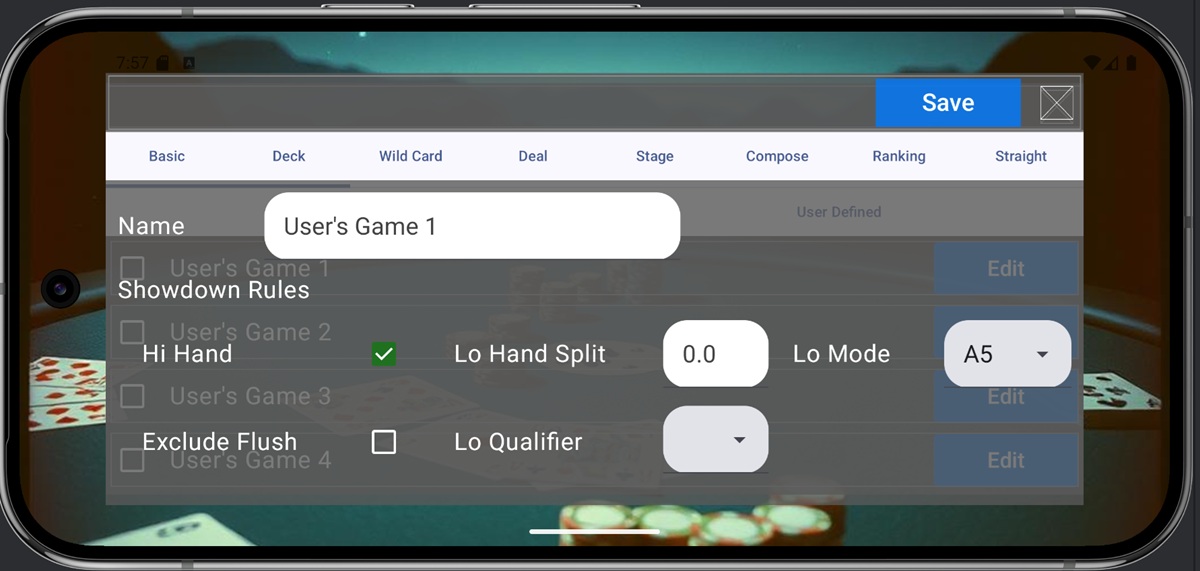
The Basic screen sets the game name and chip distribution rules during showdown. For games like Omaha Hi-Lo that split the pot between Hi and Lo, configure this here. The screen items are as follows:
- Name: Game name. Duplicate names cannot be used.
- Hi Hand: Sets whether the pot is distributed to the Hi Hand. If unchecked, chips are distributed only to the Lo Hand.
- Lo Hand Split: Enter the chip split ratio between Hi Hand and Lo Hand. Set to 0.5 for a 50/50 split, or 0.0 if there is no Lo Hand.
- Lo Mode: Sets the rules for forming a Lo Hand. The meaning of each option is as follows:
- A5: Rank strength determined in order: A > 2 > 3, etc. Straight hands are also recognized as Lo Hands.
- A6: Ranks hands in order of strength: A > 2 > 3 …, straight hands are not recognized as Lo Hands.
- 27: Ranks hands in order of strength: 2 > 3 > 4 …, straight hands are not recognized as Lo Hands.
- 26: Ranks hands in order of strength: 2 > 3 > 4 …, straight hands are also recognized as Lo Hands.
- Exclude Flush: Setting to determine if flushes are recognized as Lo Hands. If checked, flushes are not recognized as Lo Hands.
- Lo Qualifier: The rank range that can be included in a Lo Hand. For example, with A5 and a Lo Qualifier of 8 (8-or-better), the ranking is A > 2 > 3… > 8. Hands containing cards outside this range are not recognized as Lo Hands.
3. Deck Screen

The Deck screen defines the types of cards included in the deck. The meaning of each item is as follows.
- Ranks: Specifies the ranks of cards included in the deck. For example, in Short Deck Hold’em, this can be expressed by unchecking 2, 3, 4, 5.
- Suits: Specifies the suits of cards included in the deck. Uncheck to reduce suits.
- # of Jokers: Sets the number of Jokers to include in the deck. Up to 2 Jokers can be included.
- Wild Card: Specifies which cards act as Wild Cards. Jokers are always treated as Wild Cards. Up to 5 different card types can be set as Wild Cards.
- # of Max Use Per Hand: Specifies the maximum number of Wild Cards that can be used in a hand. Hands with more Wild Cards than this value are judged as having no valid hand.
4. Wild Card Screen

The Wild Card screen defines which card ranks the wild card can substitute for. The meaning of each item is as follows.
- Wild Card Substitution: Specifies the ranks the wild card can substitute for. For example, if only A can be substituted (like Joker as a Bug) or if it can substitute for any rank in a Straight, check only A and check Any for Straight.
- Wild Card White List: Specifies the hands in which the wild card can be used to complete a hand. For example, to prevent the wild card from being used for a Flush, uncheck the Flush box.
5. Deck Screen

The Deck screen sets the number of betting rounds and the number of players. Pressing the Generate button creates the data for the Stage screen. The meaning of each item is as follows.
- Min Players: Specifies the minimum number of players for the game.
- Max Players: Specifies the maximum number of players for the game. If the number exceeds the available cards, it will automatically adjust to the available number of cards.
- Deal Stage Count: Specifies the number of betting rounds. For Texas Hold’em, this is 4.
- Generate: Generates the specified number of rows on the Stage screen based on the Deal Stage Count.
6. Stage Screen

The Stage screen sets the number of cards dealt and the betting method for each betting round. Before editing, you must generate the required number of rows for the betting rounds on the Deck screen. The meaning of each item is as follows.
- Name: The name of the betting round
- Hole: Number of hole cards dealt
- Board: Number of community cards opened
- Each: Number of face-up cards dealt to players
- Betting: Betting method. The options mean the following:
- No Limited: Any amount can be bet
- Pot Limited: The pot amount is the betting limit
- Fixed Small: Bet an amount equal to the Big Blind
- Fixed Small Option: Allows selection of Big Bet if a pair is formed with the face-up cards (7 Card Stud)
- Fixed Big: Bet an amount equal to twice the Big Blind
- All-in or Fold: Choose between All-in and Fold
- Raise Cap: Maximum number of raises
- Action Start: Sets the player who acts first. The options mean the following:
- Left of BTN: Action starts with the player next to BTN (i.e. SB).
- Left of BB: Action starts with the player next to the BB (i.e. UTG).
- Left of SB: Action starts with the player next to the SB (i.e. BB).
- Left of AGR: Action starts with the player next to the Aggressor (the player who raised last in the previous stage).
- Bring In: Setting for 7 Card Stud. Only available when using 7 Card Stud-style stage settings (cannot be used with custom settings).
7. Compose Screen

The Compose screen defines the card composition rules for forming hands. The meaning of each item is as follows.
- Total: The total number of cards used to determine the hand
- Hole: Specifies how many cards can be used from the hole cards
- Board: Specifies how many cards can be used from the community cards (Common) and the face-up cards (Each)
- Wild Card Natural Priority: Check this to prioritize hands formed without wild cards over hands formed with wild cards when both hands are the same rank.
8. Ranking Screen

The Ranking screen allows you to set the strength of poker hands. For example, in Short Deck Hold’em, the strength of a Full House and a Flush is reversed, and this can be set here. The checkbox to the left of a hand name indicates whether that hand is valid. Use the + and – buttons to the right of a hand name to swap its ranking with the hand above or below it. You can scroll the screen by dragging. Specify the order for all hand rankings.
9. Straight Screen

The Straight screen allows you to set the validity check and strength of Straight hands. To enable Wraparound Straight (JQKA2, QKA23, KA234) as a valid Straight, check the box on the left. Similar to the Ranking screen, you can freely set the relative strengths of Straight combinations.
10. Saving Settings
The screen settings above are saved by pressing the Save button. If you close the screen without pressing the Save button, all edited content will be discarded.